Pouch Credit Reimbursement

NOTICE: Please note that BioFire has implemented changes to the current pouch credit policy.  BioFire will only process pouch credit requests for products that are within one year of shipment or within 2 months of expiration, whichever occurs last. Pouch credit requests received beyond this time, illegible submissions, and submissions with inaccurate and/or incomplete information will not be processed. Please wait to submit pouch credit requests until the kit lot has been consumed.
Pouch Credit Process:

BioFire Diagnostics is committed to ensuring the quality of its products and will provide credit for pouches lost due to instrument error or pouch malfunction. BioFire will also provide credit for up to six pouches per panel for instrument replacements and or repaired/loaner verification.

Once BioFire receives a pouch credit request, BioFire Customer Technical Support compiles the request and sends the information to our accounting team. Our accounting team will then create a credit memo report and send the details of the credit to the customer’s accounting department. BioFire Customer Technical Support will then inform the customer that the process is complete and provide a credit memo number. The credit can be applied to a current invoice when referenced.

It is recommended that customers submit multiple pouches per credit submission for a faster processing time. Please refer below to the Pouch Credit Process FAQ and the Pouch Credit Reimbursement Form for further information and credit submission.

For any additional questions, contact BioFire Customer Technical Support at:
Phone: +1-800-682-2666 → Option 3 for Tech Support → Option 7 for BIOFIRE Support
Email: biofiresupport@biomerieux.com

Pouch Credit Process FAQ

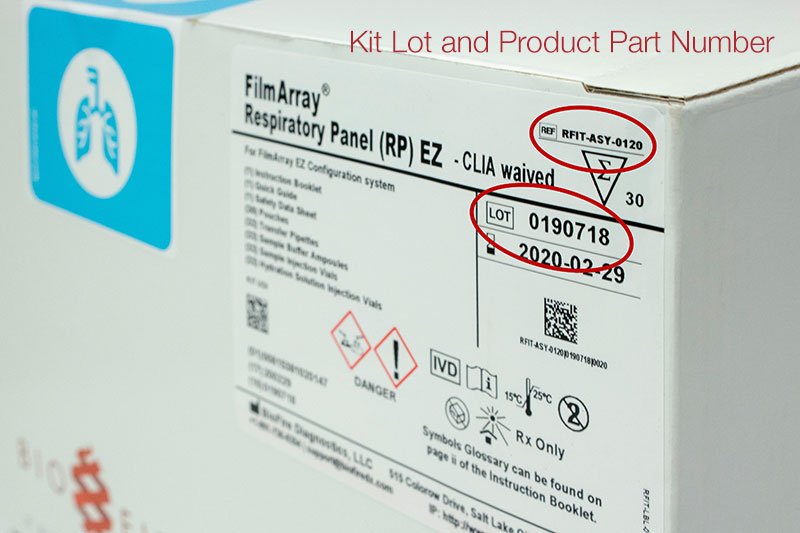
The Kit Lot and Product Part numbers are located on the front label of the pouch Kit box. The Product Part number is displayed on the top right-hand corner of the box. The Kit Lot number is located directly underneath the Product Part number.

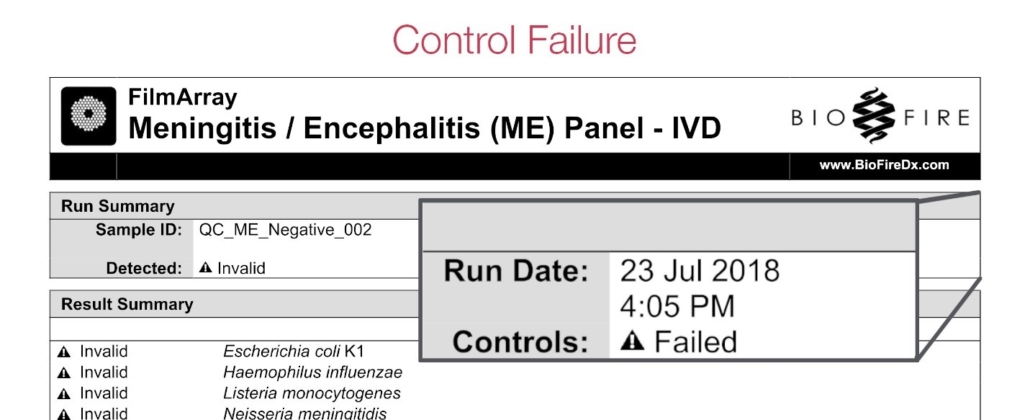
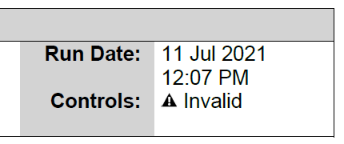
Control failures will be documented on the top right-hand side of the run report, in the Run Summary section. If the Controls field shows “Failed”, a control failure has occurred.

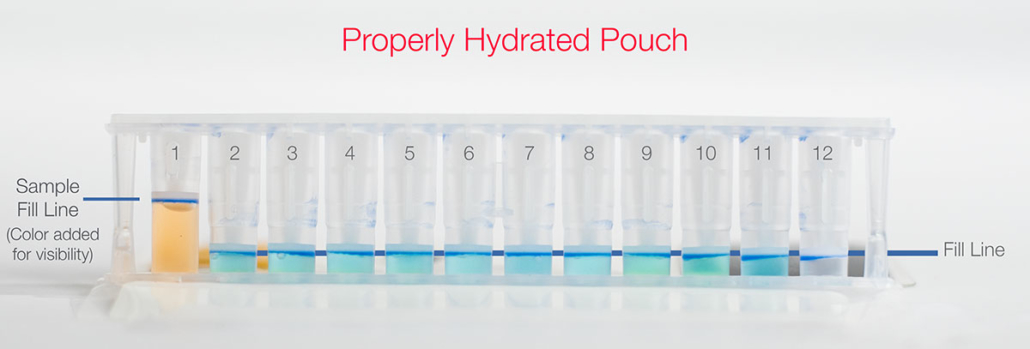
When a pouch is injected, the hydration and sample solutions will completely fill wells 1-11, as shown in the picture below. Well 12 should be empty prior to the run. If the wells do not completely fill a hydration failure has occurred.

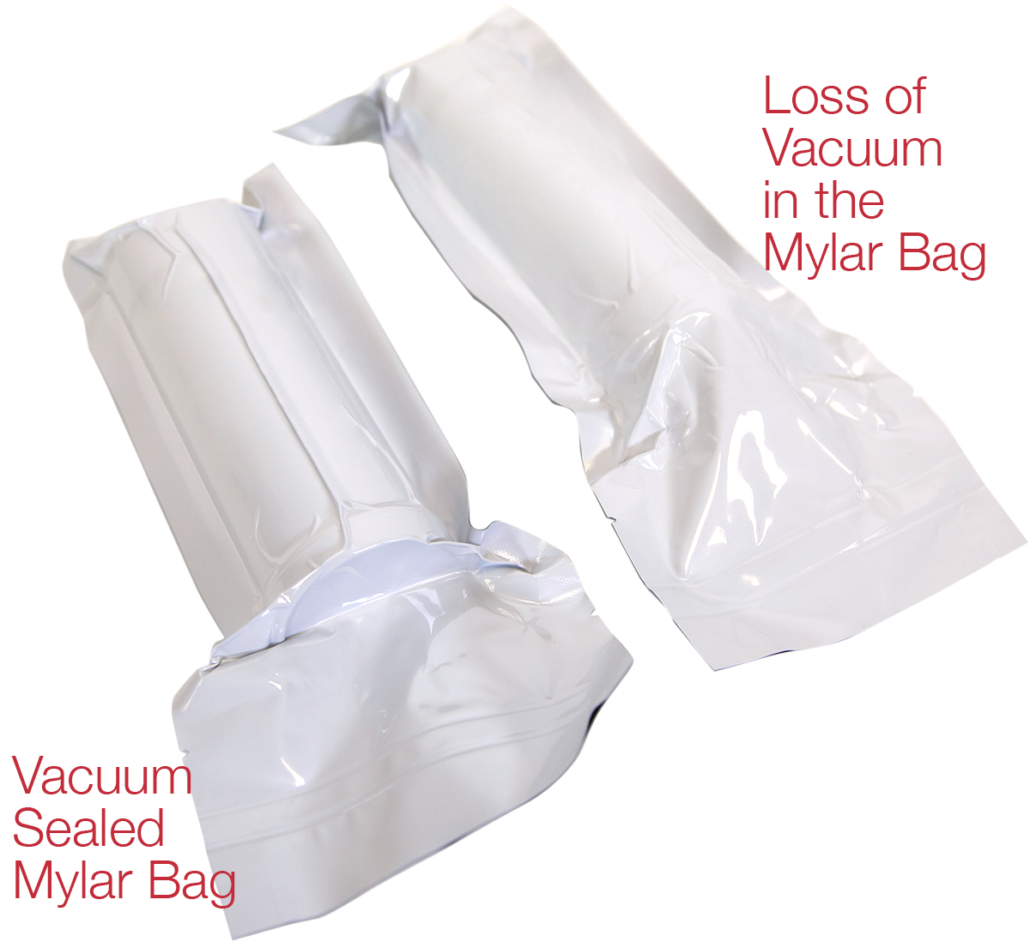
  • A loss of vacuum error occurs when the mylar bag is not sealed air tight around the pouch canister. If the mylar bag is correctly sealed a distinct “whoosh” sound will be heard when opened.
  • If the mylar bag is not sealed air tight the pouch may still function properly and should be verified by injecting the hydration solution. If the pouch wells hydrate correctly, the pouch can still be used on the BioFire® FilmArray® System. If the pouch fails to hydrate properly, the pouch should be discarded and a loss of vacuum error should be recorded.

BioFire® FilmArray® 2.0 Instrument

  1. In the Browse Runs tab, highlight the run you wish to view.
  2. Right click, and in the drop-down menu, select Show Run Details
  3. A new tab will open; navigate to the Errors Section and look for an error code.
  4. The error codes typically follow the formatting of a letter and three numbers.

BioFire® FilmArray® Torch

  1. Select Browse Runs in the top menu.
  2. Use the search icon to search for runs.
  3. Select a single run from the table → Select View Report → Click Actions → Select Show Run Details → Look for error code.
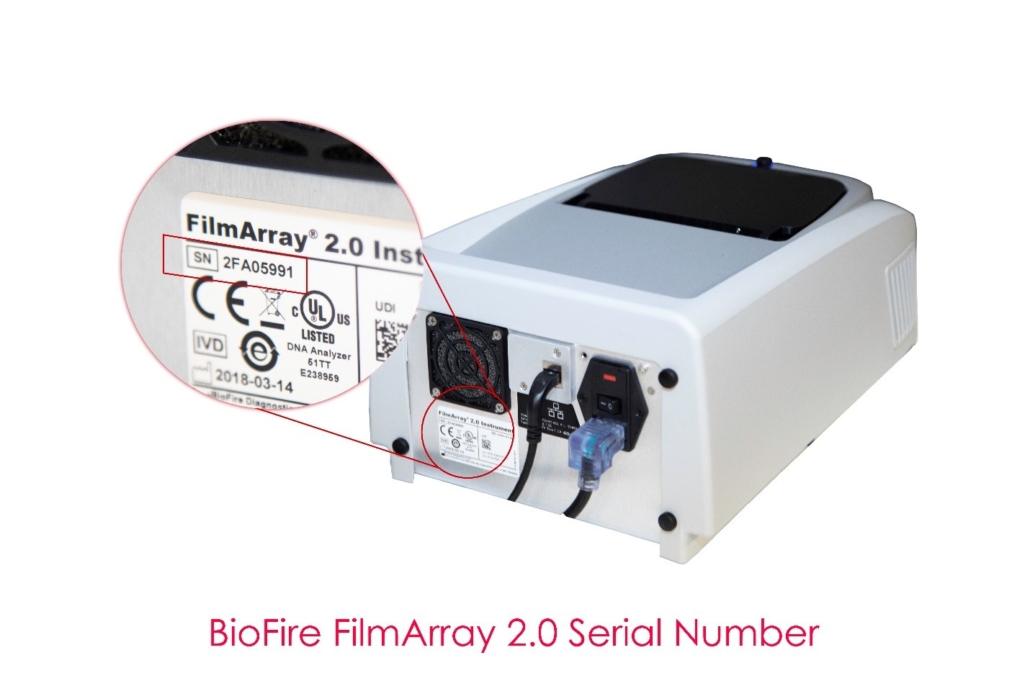
  • The instrument serial number (SN) is found in the Run Details section at the bottom of the test report.
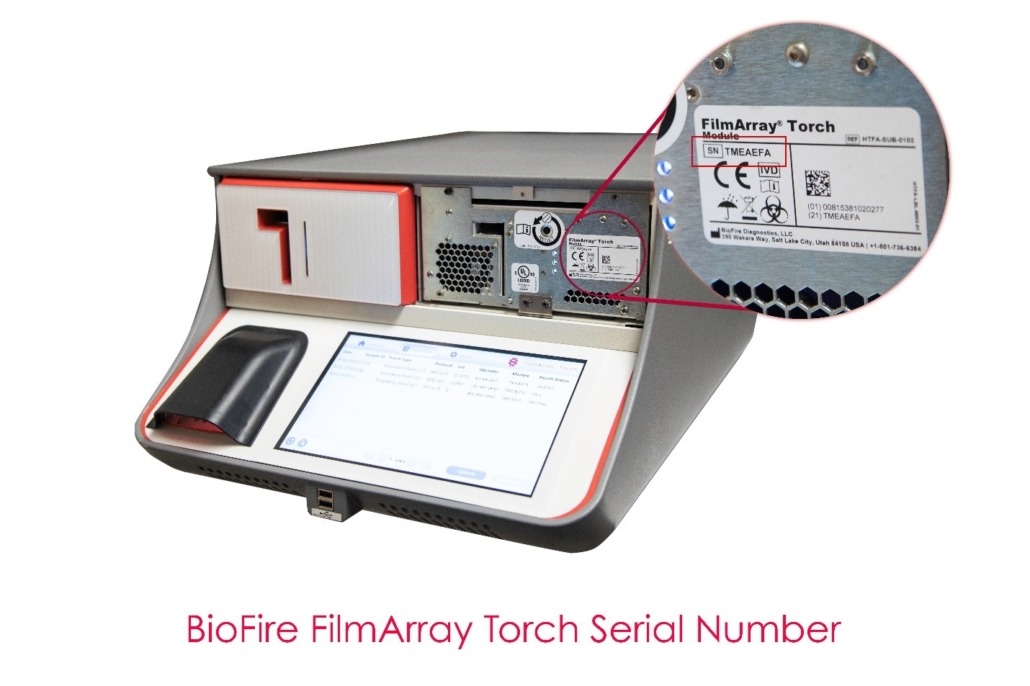
  • The SN can also be found on the back of the BioFire® FilmArray® Instrument and BioFire® FilmArray® 2.0 Instrument. To find the SN on the BioFire® FilmArray® Torch, remove the magnetic face plate on the front of the module. (See images below.)

Equivocal results do not qualify for a pouch credit.

If “Controls: Failed” then the run was complete, but at least one of the pouch controls failed.  (see: How is a control failure identified?)

If “Controls: Invalid” then the run did not complete (typically this indicates a software or hardware error).

To receive credit for an invalid control, please provide any error codes displayed during the run and the Run Status field (found in the Run Details section of the report). (see: How to Retrieve Instrument Error Codes)

Pouch Credit Reimbursement Form:

  • For instructions on filling out this form, please refer to the FAQs above. Please note that some of the fields below have changed. If you have any issues with this form please clear your cache and try again. If you continue to experience issues please contact Customer Technical Support at support@biofiredx.com.
    PLEASE NOTE, dropdown selections have changed.
    Kit Lot #QuantityFailure TypeNotesInstrument Serial*Failure Date